I revisited Whiteboard on iPad: open it and start writing, sketching, marking up or teaching
Starting with a clean canvas, I tested handwriting, colors, Auto Draw, PDF markup, background templates, page management and export. What impressed me was not the number of features, but how little setup stands between an idea and the first stroke.
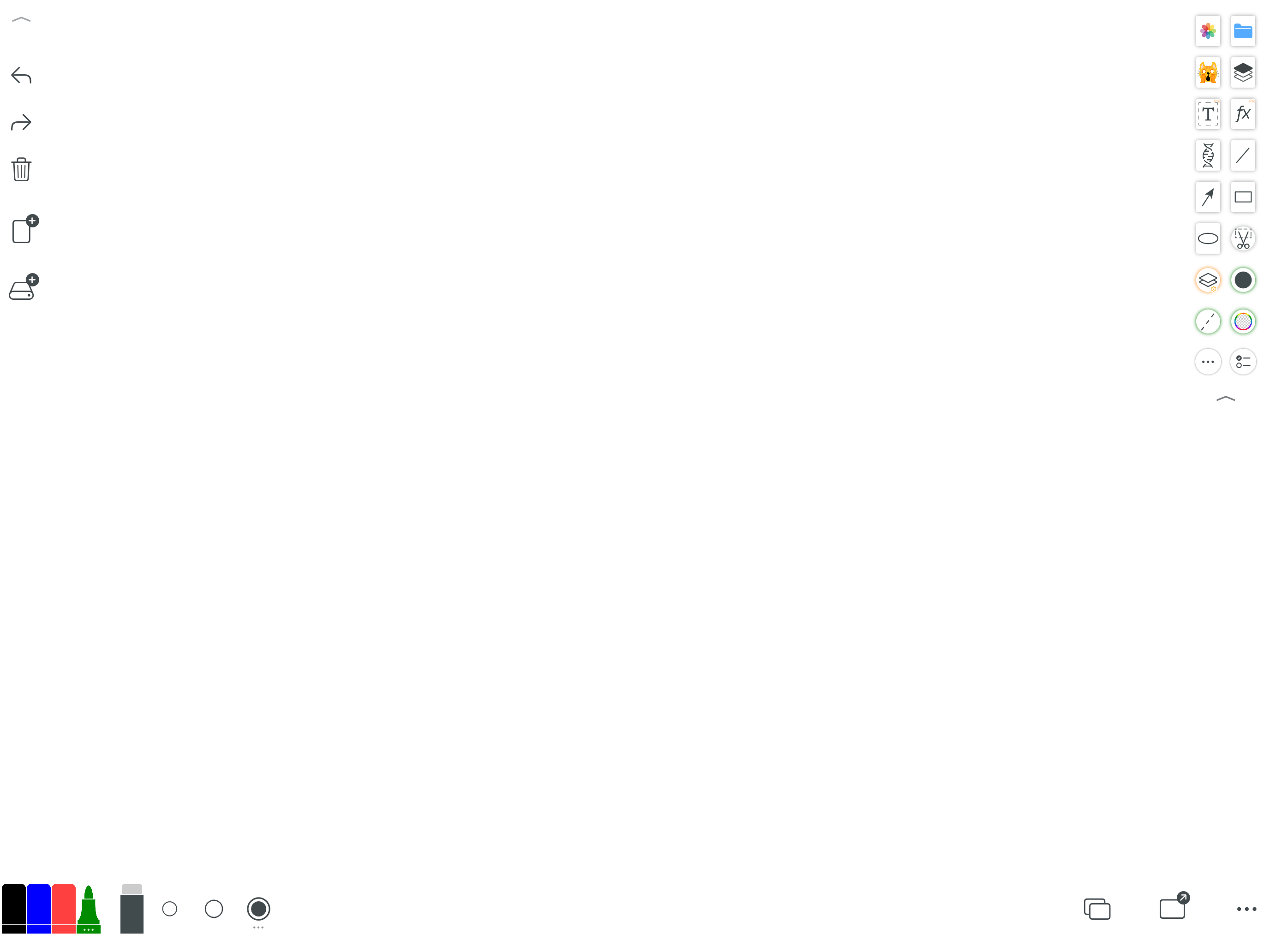
My requirements for a mobile whiteboard are simple: let me write the moment an idea appears, draw while I explain, and take the result with me when I am done. Many whiteboard apps are either too bare or make me choose accounts, spaces, projects and templates before the first mark. Whiteboard does the opposite: it hands me a blank surface first and keeps the tools around it.
I used a 13-inch iPad in landscape. The canvas remains open in the middle, with tools on both sides and along the bottom. Pen color, width, eraser and undo are immediately available, and Apple Pencil makes quick emphasis feel close to paper. That write-first rhythm matters more to me than an elaborate home screen.
Color goes far beyond a short preset row
The bottom bar already holds several everyday pens, so I can move from black notes to blue additions, red emphasis and green highlights without opening a panel. Nearby dots change stroke width just as quickly.
For more control, the full palette adds a broad color range, saved custom colors, popular choices, opacity and multiple pen types. Teachers can keep a consistent color code for prompts, working and answers; design reviews can reuse brand colors instead of guessing.
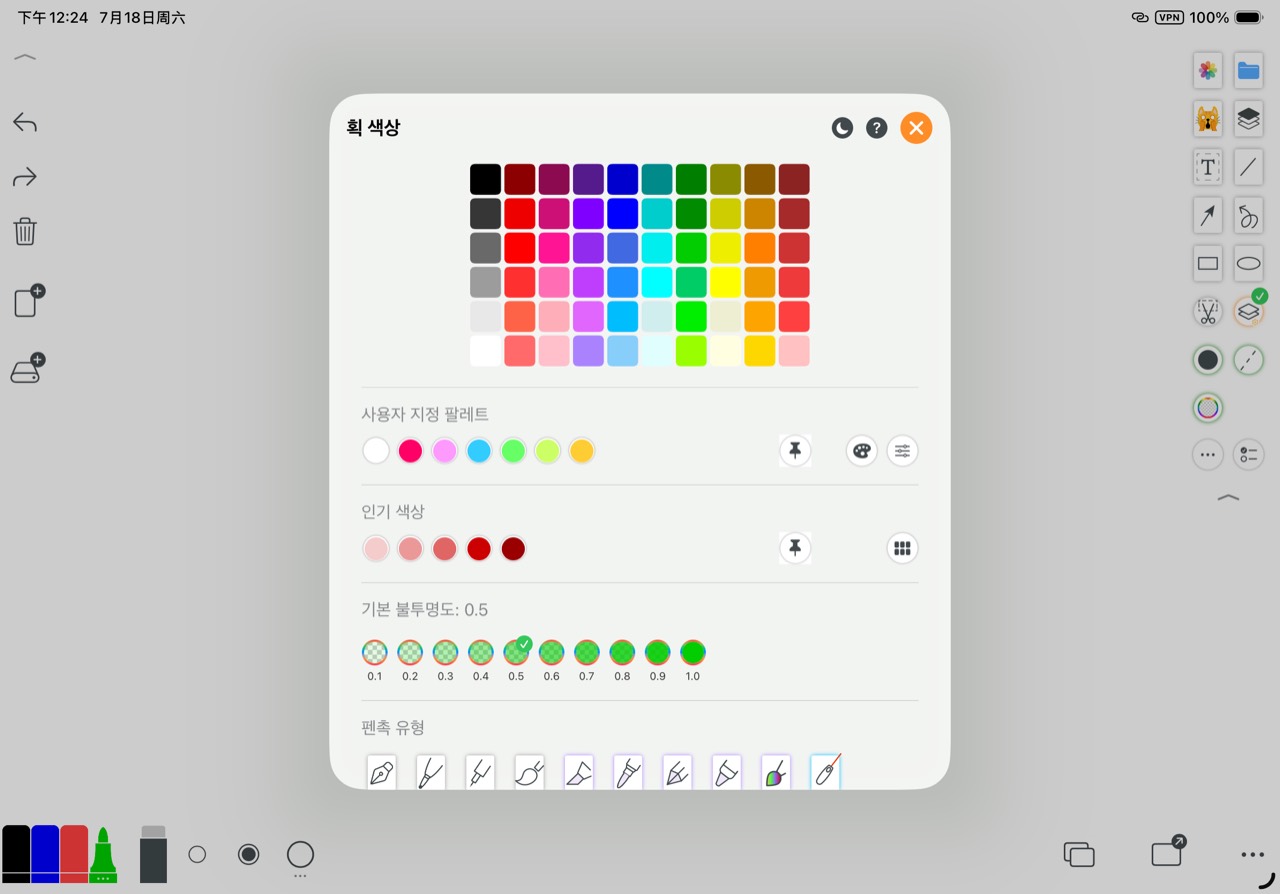
Full palette, saved colors and opacity
- A broad grid makes light and dark variations easy to compare
- Custom palettes preserve personal, classroom or brand colors
- Opacity runs from 0.1 to 1.0, with several pen types
Teaching tools are a highlight: place common shapes with one tap
When I teach or explain a process, I often need circles, boxes, arrows and solids. The teaching library includes lines, angles, triangles, quadrilaterals and polygons, plus cylinders, spheres and cones. A tap places a clean shape on the canvas without slowly tracing it.
In practice, circles, squares, rectangles, cylinders, spheres and pentagons quickly became a clear demonstration page. Each object can still be selected and adjusted. That suits classroom pace far better than drawing a crooked version, erasing it and starting again.
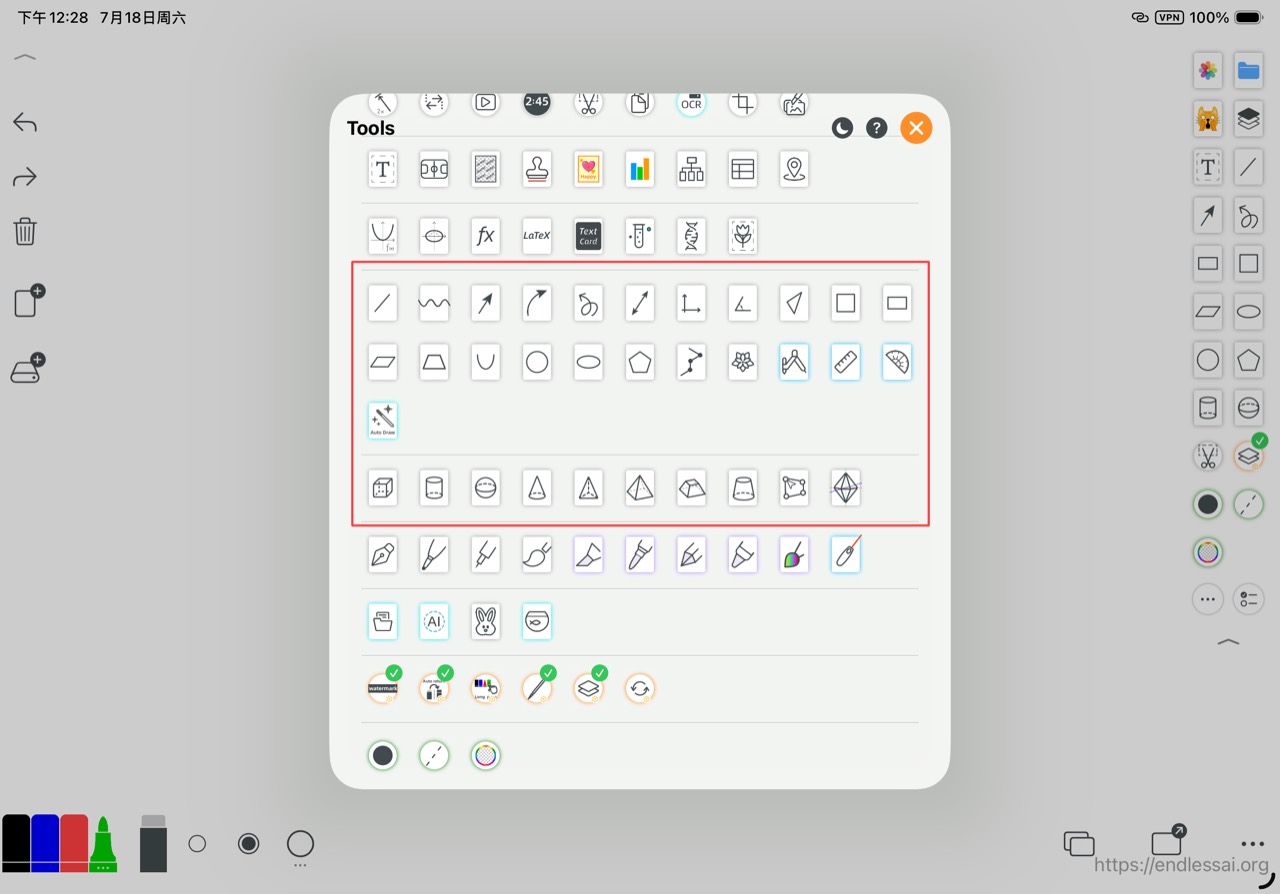
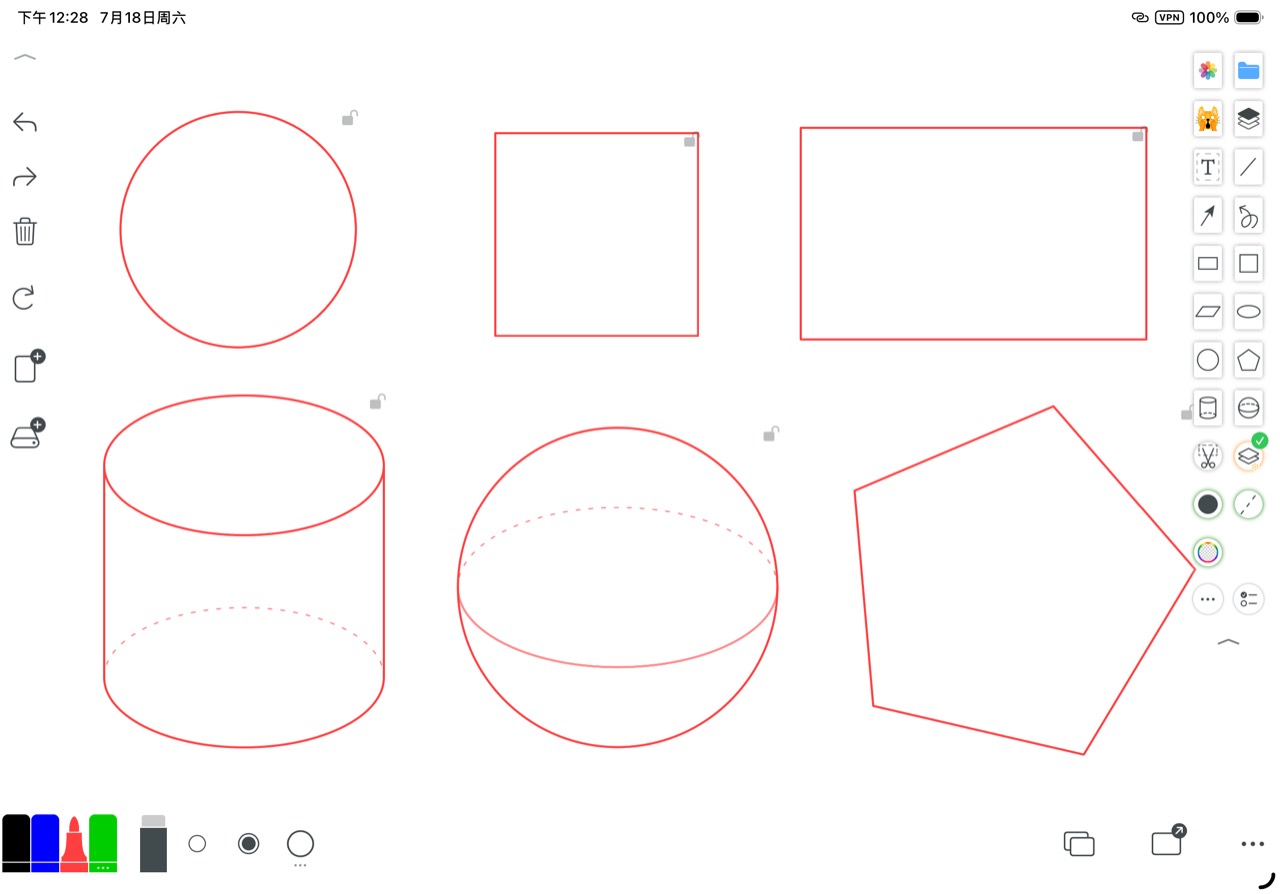

When I want handwriting speed, I switch to Auto Draw
Fixed shapes are best when neatness matters. With Auto Draw, I make one continuous outline and let AI suggest a likely shape. Both approaches live in the same tool area, so I can switch between speed and precision.
More than one whiteboard: pages, an infinite canvas and PDF are different starting points
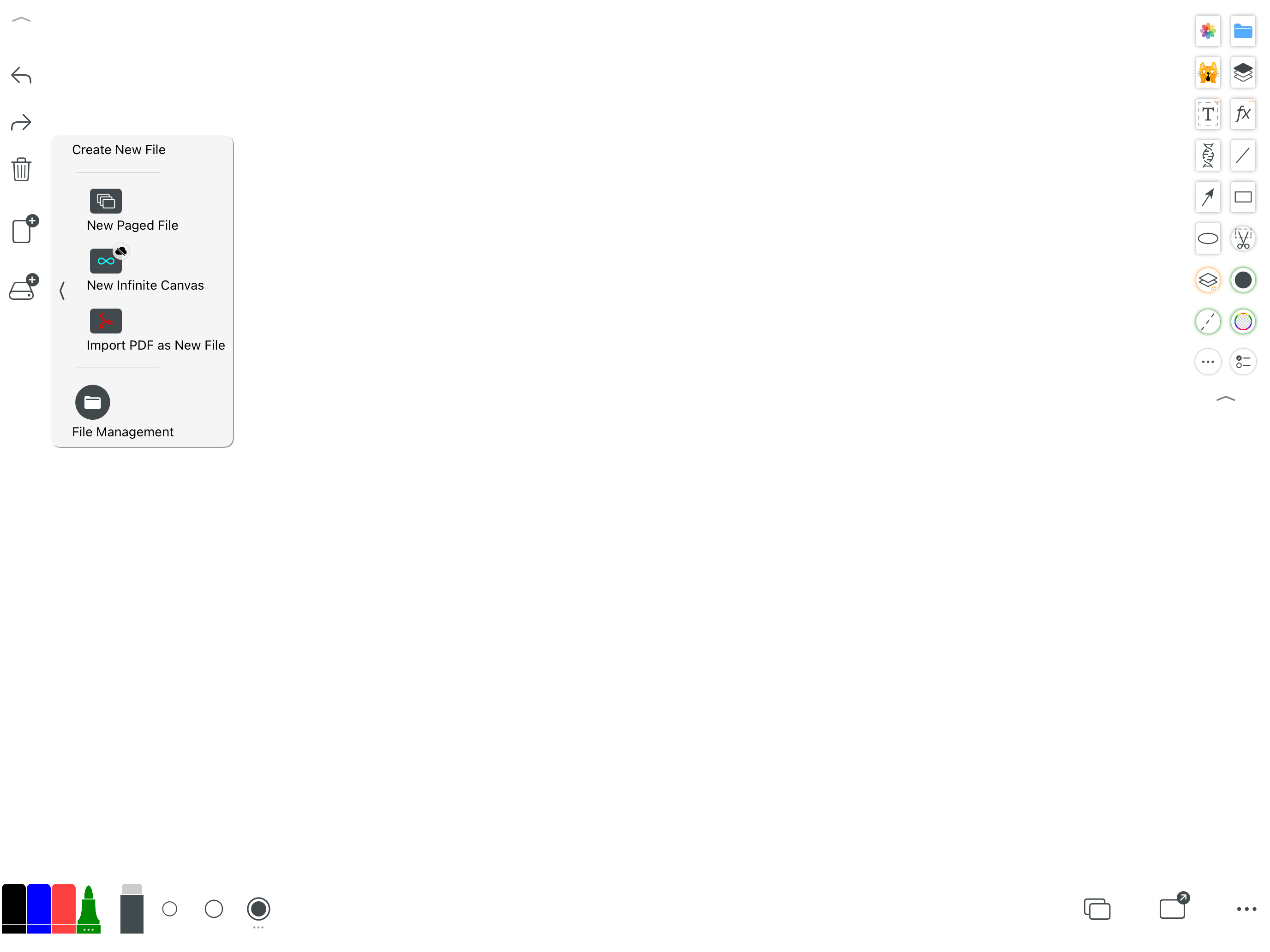
The file menu offers paged documents, an infinite canvas, PDF import and file management. They are distinct workflows rather than duplicate buttons.
I use pages for lessons and meeting notes, an infinite canvas for brainstorming and flowcharts, and PDF import for handouts, exam papers or contracts that need annotation on the original page.
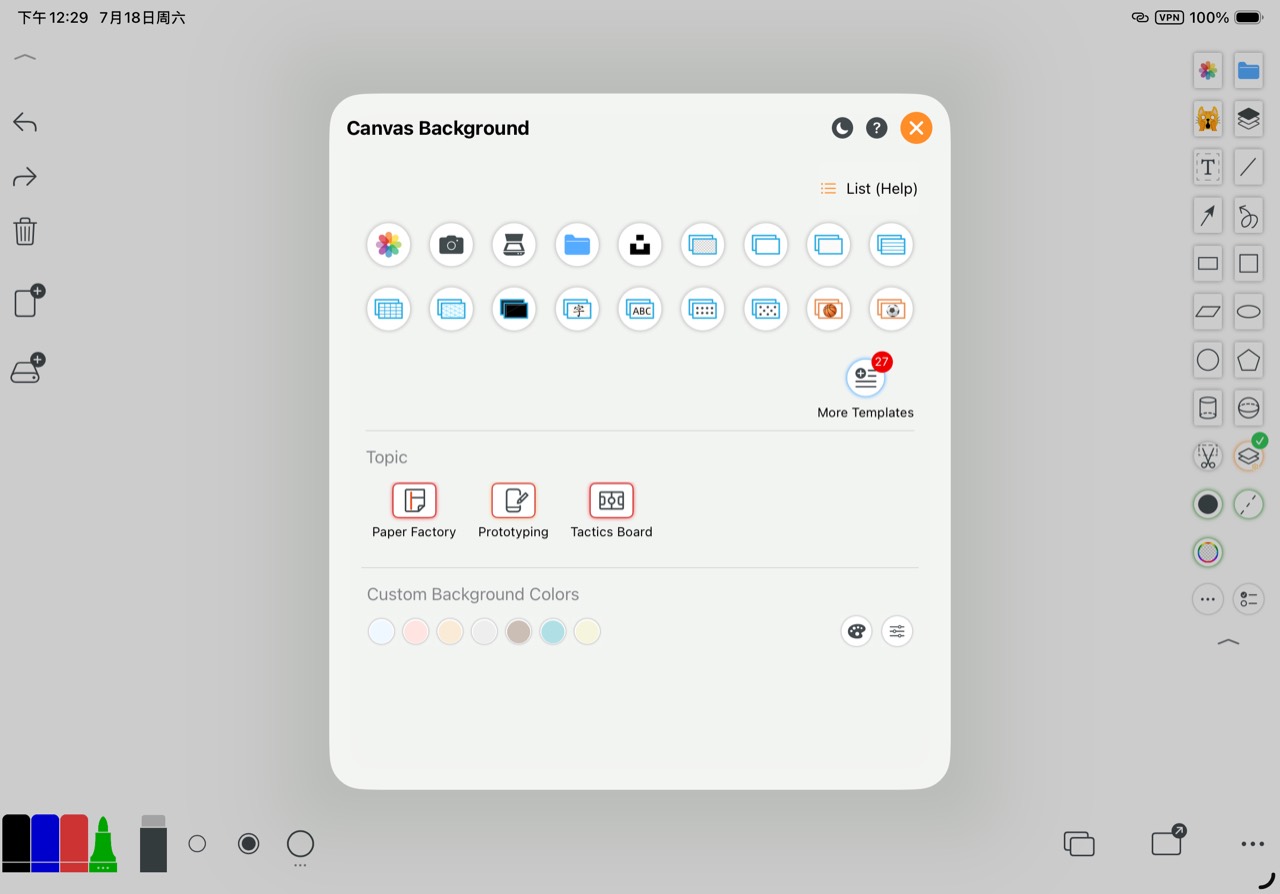
A background is not decoration; it turns the canvas into a specific tool
General templates include white, transparent, ruled, grid, dotted and blackboard surfaces, language writing guides and image import. Task-focused areas add Paper Factory, Prototyping and Tactics Board.
I can use a grid for mathematics, writing lines for vocabulary, a prototype template for a design discussion or a tactics board for coaching. Because the background and ink are separate, erasing a note does not damage the source image.
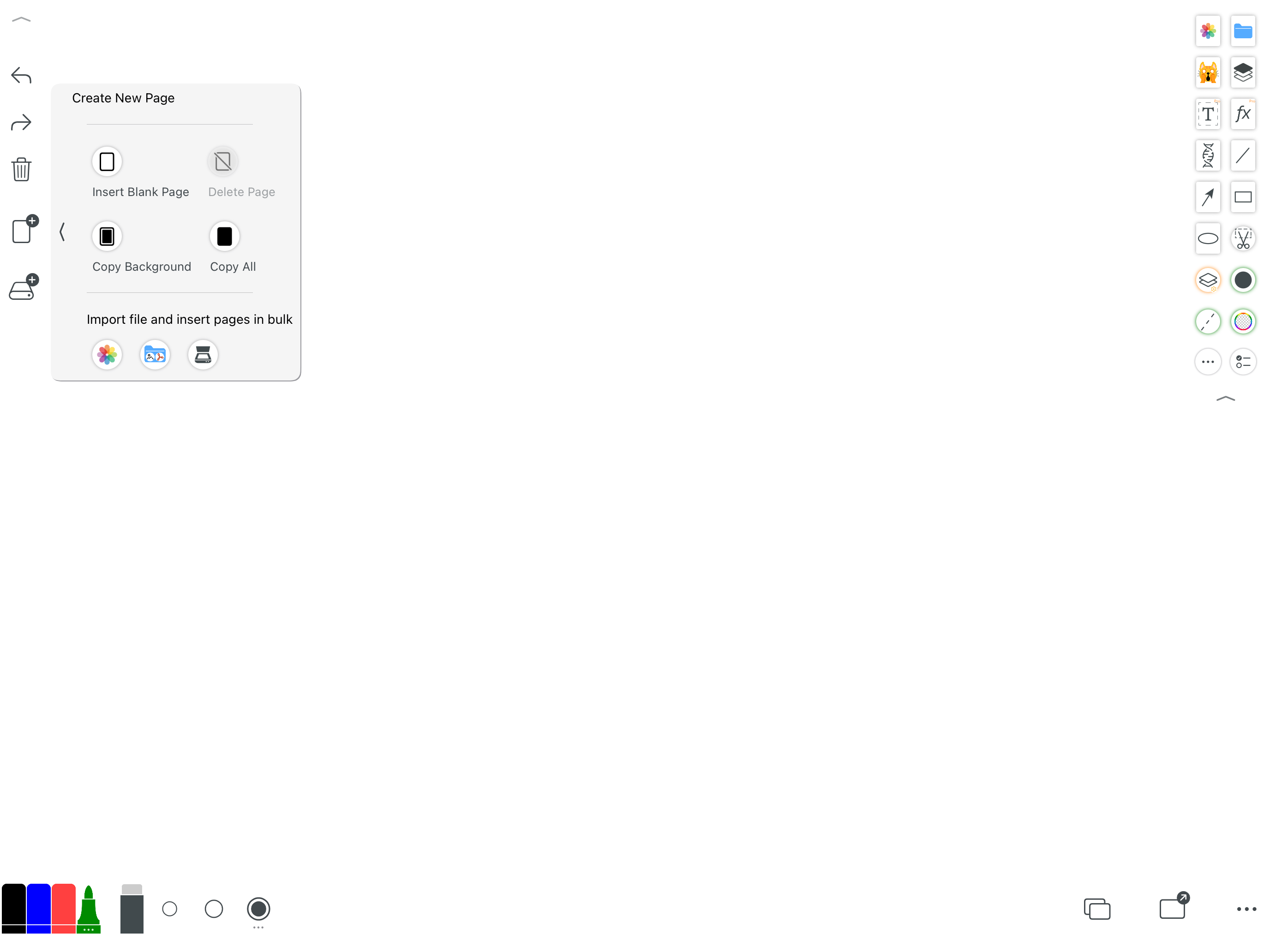
Multi-page work stays continuous
When one page fills up, I can add a blank page, reuse the previous background or duplicate the whole page. Photos, files and scans can also be inserted in batches, which saves time when teaching the same kind of problem repeatedly.
There is a suitable version for phones, tablets and computers
I chose iPad landscape because the large surface and Apple Pencil show the writing experience best. Whiteboard also covers iPhone, Mac, Android phones, Android tablets and Windows PCs.
It can be the main board in a lesson or meeting, a quick scratchpad on a phone, and a larger workspace when I return to a desk. The layout adapts to the screen, but the canvas-first idea remains the same.
After writing, I care about taking the result with me
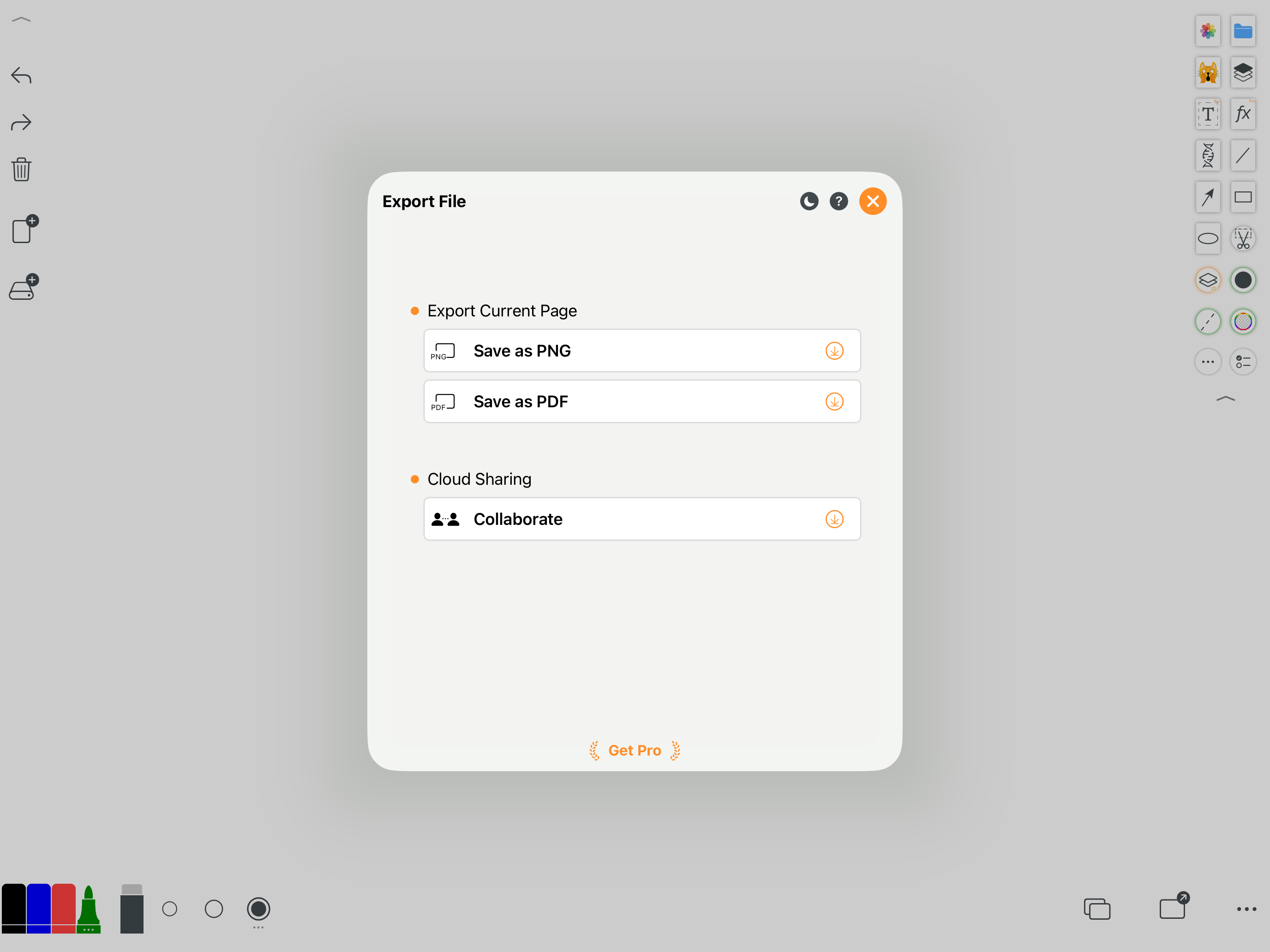
A page can be saved as PNG or exported as PDF. Those formats cover assignments, meeting notes and annotated files sent back to colleagues.
A 2022 Taiwanese review listed the lack of online sharing as a limitation. The current export panel now includes a collaboration entry, so that older conclusion no longer describes the app as it stands today.
It suits people who want a fast start without giving up organization
For a quick note, the clean canvas is enough. When the task grows, pages, infinite canvas, PDF, templates and file management are ready. That balance is Whiteboard's strength.
There are many tool icons to learn, and some advanced items carry a Pro badge. But mastering pen, files, backgrounds and export covers most everyday work; the rest can be explored when needed.
- Teachers, tutors and learners who mark up PDFs
- Meeting notes, brainstorming and flow sketches
- Coaches who explain tactics on field backgrounds
- Anyone choosing across phone, tablet and desktop